We may earn a commission from links on this page.
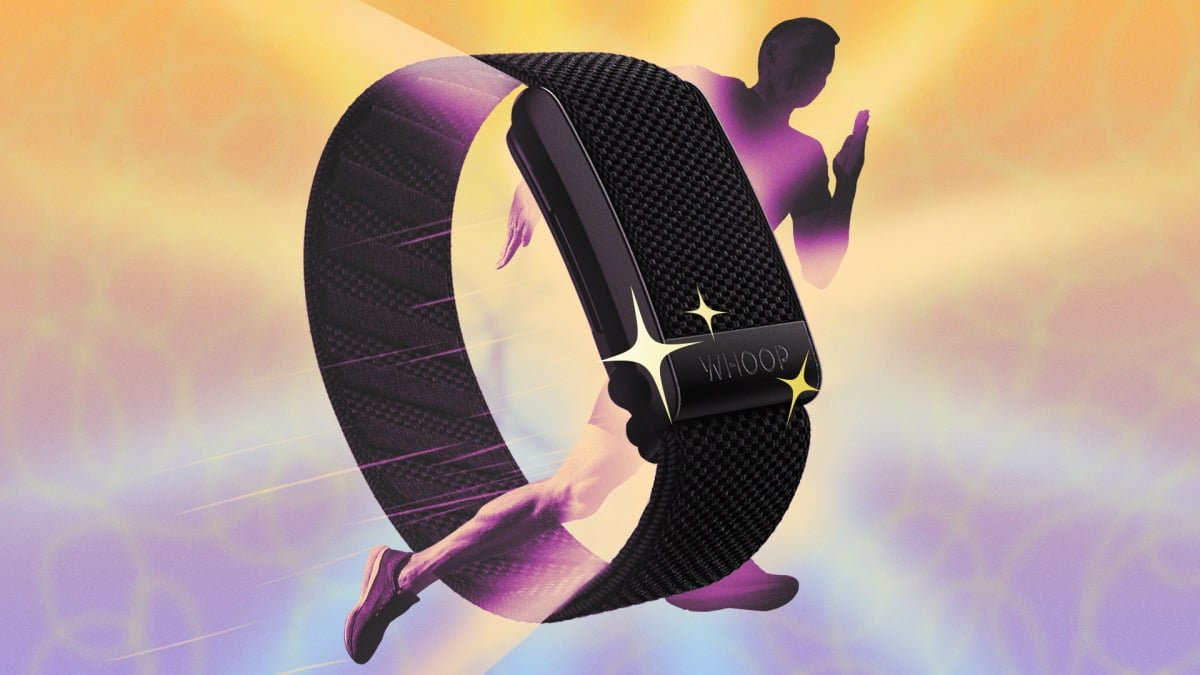
If you’ve been wearing a Whoop, you’ve probably explored some of the features of its incredibly rich app—but chances are, some things are still hiding from you. I’ve been wearing a Whoop off and on since version 3.0, so let me tell you some of the best ways to use the Whoop (and a few things I think you should do differently than you’re “supposed” to).
Use the Whoop’s strength trainer after (not during) workouts
I’m going to start off with my strongest opinion, and you’re free to disagree: Whoop’s strength trainer is a pain the butt to use during workouts, but you get all the benefits with less hassle if you use it to attach a workout after you finish recording your gym session.
The Strength Trainer knows what exercises you’re doing, and so it can calculate a “muscular load” for the workout. This is great, because you now get an appropriately high strain score for a hard workout. (Without Strength Trainer, Whoop only uses heart rate data to calculate strain, which of course underestimates your strength workouts.)
I don’t like using the Strength Trainer during workouts because you have to remember to start and stop each set, and mid-workout editing is annoying. But there is an easier way! Just record an appropriate workout type (like “weightlifting”), and then after your workout Whoop will prompt you to attach a Strength Trainer workout. You select your exercises, fill in your weights, and then Whoop re-processes the workout to give you your new, higher strain score.
Turn your phone sideways
Credit: Beth Skwarecki
This is a little Easter egg that you may never discover except by accident. When you’re on the home screen, turn your phone sideways. You’ll see a long, horizontal graph of your heart rate for the day so far, with sleep and workouts highlighted. (You need to have rotation unlocked in your phone settings, of course.)
Set up a custom weekly plan
The weekly plans are a truly underrated feature of the Whoop app. They give you a way to focus on the firehose of data Whoop can track, turning it into a few simple tasks you can work on throughout the week. If you’re feeling either stumped or overwhelmed when you look at your Whoop app, set up a plan and check on your progress throughout the week.
If you don’t know where to start, you can choose one of the pre-made plans. For example, the “Feel Better” plan gives you a target for daily steps, suggests meeting a hydration goal four days per week, and doing “any recovery activity” three days per week. All of these parameters are editable, if you’d like to tweak something.
But you can also set up a custom plan, or ask the Whoop Coach to write you one. The plan can use any combination of Journal answers (“did you hydrate today?”) and data that Whoop gathers (for example, I’m aiming for 65% sleep consistency). I find it more motivating to chip away at weekly targets rather than follow (or ignore) individual recommendations each day.
Use the “daily outlook” rather than just tapping the Whoop Coach icon
Whoop Coach is the only fitness AI I’m currently on speaking terms with. They all have their flaws, but the Whoop Coach is pretty good about delivering the highlights of your data each day and telling you how you’re doing compared to your weekly goals.
That said, there are two ways to access Whoop Coach, and one of them is more useful than the other. The way I like to use it is to look for the “daily outlook” button in the middle of the home screen, right under “My Day” and above the timeline. Tap this, and you’ll get a full rundown of what you’ve been doing well lately and where you may want to focus your efforts today. (If I’ve been doing a lot of outdoor workouts lately, I’ll even get a weather report.)
Meanwhile, the “W” button in the corner of the screen also brings up the Whoop Coach, but it’s a lot less helpful. This coach seems to focus on designing my next workout, whether I want to do that or not, and it doesn’t usually take my weekly plan or other relevant goals into account.

Top: the “old” view. Bottom: the new one. Both are available as home screen widgets (shown on iPhone).
Credit: Beth Skwarecki
The Whoop app offers widgets you can put on your home screen, which mostly just replicate data you can get in the app. But one of them is slightly different—a widget that shows strain and recovery the way the app used to. This view is arguably confusing, and I understand why Whoop moved away from it: your strain and recovery are shown as concentric circles, and sleep score is missing.
But who really needs the sleep score? This widget gives my HRV and the calories it thinks I’ve burned so far today, with little icons in the corners for how long a streak I’ve kept up and the current battery life of the device. If you’d prefer the current design, with separate circles for sleep, recovery, and strain, there’s a widget option for that as well.
Broadcast your heart rate to gym equipment
The Whoop sensor picks up your heart rate, so why not use it as a heart rate monitor with other devices? It’s not as accurate as a chest strap, so I wouldn’t advise using it in place of one, but it’s a convenient way to broadcast your heart rate to a treadmill or elliptical machine at the gym. This way you can see your heart rate on the machine’s display in real time, while still tracking the workout to your Whoop app as usual. To turn on heart rate broadcasting, tap the icon for your device (in the top right corner of the app) and you’ll see a toggle labeled broadcast heart rate.
Wear it on your body (with or without buying more products from Whoop)
The wristband is convenient, but the ability to be worn in a bicep band is one of Whoop’s best features. You can buy Whoop’s own bicep band, but it’s not cheap. You can also buy compatible third-party bicep bands from other retailers like Amazon. This one snaps onto the Whoop device more easily than Whoop’s own band does.
Whoop also has its Body line of clothing, including sports bras and boxer shorts with a pocket for the device. If you’re handy with a sewing needle, you could create your own. And if you’re not, but want to get the Whoop off your wrist for a particular occasion, I’ve had success taping the device to my skin with athletic tape. Not my proudest moment, but it worked.
What do you think so far?
Set up custom bedtime recommendations
Whoop’s best sleep features are a little bit hidden. Since the app knows how “recovered” you are, it can estimate how much sleep you’ve been missing out on, and recommend a bedtime to help you catch up, if needed.
There are a few layers to this feature, so bear with me. First, scroll down on your home screen, and you’ll see a card with a recommended bedtime and wake time. Next, tap that card and you’ll see a screen where you can change what kind of bedtime recommendation you’ll get. You can choose to “meet my sleep need” (catch up if needed) or “improve my sleep” (try to stay consistent while still getting as much sleep as you reasonably can).
There’s more, though: tap the calendar icon at the top right corner, and you can set a weekly schedule. For each day on the schedule, you can decide if you want an alarm at a set time of day, or if you’d like the Whoop device to buzz you when you’ve hit a certain amount of sleep. This could be enough to “get by,” enough to “perform,” or enough to “peak” (meet 100% of your sleep need). You can also use the schedule to get recommendations even if you don’t want the alarm.
Only track some things in the journal
Every day, Whoop will prompt you to fill out a questionnaire about what you did the day before. This helps it to figure out what affects your recovery. A classic example is logging when you drink alcohol, and then getting hard data on just how poorly you slept on the nights you drank.
At first, you’ll be tempted to log everything. But that’s not the right way to use the journal. First of all, if you already know something (like that alcohol interferes with your sleep), there’s no need to track it. Secondly, tracking too many things is just a lot of hassle when it comes time to fill out your journal. You can tap the “use previous answers” checkbox, but then you’re likely to miss a few things.
Most importantly, Whoop can’t even use the data from your answers unless you’re racking up answers that are both yes and no. So there’s no need to log anything you always do, or anything you never do. I recommend paring down your journal questions like so:
-
Things that you sometimes do and sometimes don’t, and you don’t yet know how they affect your sleep and recovery
-
Things that you want to log for the sake of a weekly plan
-
Things that are directly relevant to your life right now, because you can always swap out your questions from time to time.
Use those guidelines to whittle down your journal questions to just the things that actually help you to accomplish some kind of goal. Revisit the list every month or so; for example, I track allergy symptoms during the spring allergy season, but I remove it from the list for the rest of the year. Keep the questions relevant and the journal will stay useful.
Charge the Whoop band when you shower
Whoop ships most of its devices with a wireless power pack. It’s a great idea, in theory: you can slip the battery pack onto the device while you’re wearing it, so you don’t miss a minute of valuable data. And I do appreciate this when I’m about to head out for a run and I realize my battery is at 2%. But I don’t routinely charge the Whoop this way if I can help it.
Because who wants to wear a strap with a giant battery pack hanging off it? Not me. And as for 24/7 wear, I do not want to shower with a fabric band around my arm, and then have a soggy band to wear for hours afterward. Instead, I take the Whoop off to shower, and if the battery level is low, that’s when I charge it. This way I avoid both of these inconveniences. I recommend you do, too.