We may earn a commission from links on this page.
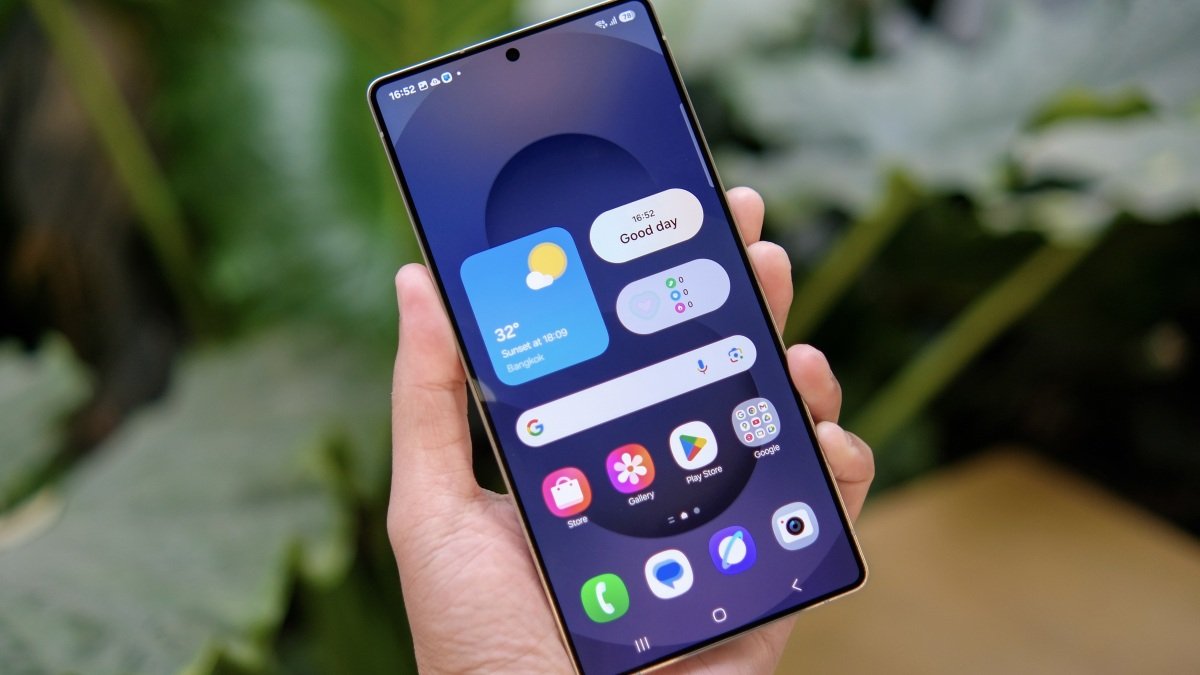
When you buy a Samsung Galaxy phone, you’re not just getting the standard, stock Android experience as far as software goes: You’re also getting One UI, Samsung’s own take on Android, complete with its own visual look, AI features, and other tweaks. One UI means you get access to settings on a Galaxy handset that aren’t available on other Android phones—you can apply customizations and controls you won’t find on a handset from Nothing or Google. Whether you’re thinking of buying a Galaxy phone and want to know what the benefits are, or you already own a Samsung handset and want to make sure you’re exploring everything it has to offer, here are some of my favorite settings exclusive to One UI.
Adjust your Galaxy’s color balance
Several other Android phones offer some basic tweaks for the color balance of the display, but Samsung goes above and beyond to give you more control. If you tap Display > Screen mode from Settings, you can adjust white balance with a slider, and switch between Vivid and Natural modes.
Tap Advanced settings, and you can apply changes that are even more granular. You get separate sliders for the red, green, and blue color channels, and another slider to adjust the vividness of the screen. Keep your eyes on the preview pictures at the top to see the effects of your changes.
Customize your Galaxy’s side button
Side button customization.
Credit: Lifehacker
The main side or power button on Galaxy phones can be remapped if you don’t want to stick with the default configuration, which is a double press to launch the camera and a long press to launch Google Gemini. (Note you can’t customize a single press, which will either lock or unlock your handset.)
From Settings, choose Advanced features > Side button, then pick either Double press or Long press. You have a lot of options for a double press: everything from the flashlight and magnifier, to the Samsung Voice Recorder or any other app of your choice. For a long press, you can switch to a different digital assistant, or have a long press turn off the phone instead. By default, you need to press and hold both the side button and the volume down button to power off a Samsung Galaxy handset, so switching to a long press can be more convenient.
Set up the Edge panel on your Galaxy
The Edge panel that’s available on Samsung phones is a real superpower for One UI. It’s a pop-up shortcut box that gives you quick access to apps, contacts, and features on your phone, and it can work as well as the Windows taskbar or the macOS dock.
You can set up and customize the Edge panel from Settings by heading to Display > Edge panels. The options here let you change the appearance and position of the panel, and switch between the type of panel you want: Choose from Apps, People, Tasks, Weather, Tools, Clipboard, or Reminder. To customize the actual shortcuts on the Edge panel, open it with a swipe from the side of the screen, then tap the pen icon at the bottom. You can make sure your most-used apps and shortcuts are always readily available.
Boost your Galaxy’s available RAM

RAM Plus settings.
Credit: Lifehacker
Samsung Galaxy phones come with a feature called RAM Plus that borrows part of your handset’s storage and uses it as temporary RAM—which should mean launching and switching between apps happens more quickly. You can find the feature and change how much storage it uses by selecting Device care > Memory > RAM Plus from Settings.
What do you think so far?
Use multi window mode on your Galaxy
One UI has a multi-window mode that turns Android into a more desktop-like operating system, and it can be helpful on phones with larger screens when you need to get a couple of apps up side by side. You can configure the feature by opening Settings and picking Advanced features > Multi window.
To actually get apps up alongside each other, swipe up from the bottom of the screen into the center of the display to see your recently opened apps. Tap any of the app icons at the top of the carousel, then choose Open in split screen view. You then get to pick a second app to share the display with the first one.
Automatically restart your Galaxy

Auto restart options.
Credit: Lifehacker
If you open Settings and select Device care > Auto optimization, you’ll see an option labeled Auto restart. If you enable this, your phone will restart when it’s not being used to “keep it running in the best condition” (Samsung’s words). You can opt to Restart when needed or Restart on a schedule. These regular restarts can help in clearing out the memory and temporary file cache on your phone, which can in turn optimize performance. As the information on screen tells you, restarts will only happen when the screen is off, you’re not actively using your phone, the battery level is about 30 percent, and the SIM card lock feature is off.
Apply ‘Intelligent Wi-Fi’ to your Galaxy
One UI on Galaxy phones doesn’t just offer wifi—it offers “Intelligent Wi-Fi,” which means it uses AI to optimize your connection as much as possible. Tasks where latency is crucial (such as video calls) get prioritized, and if the phone thinks you’ll get better performance on a cellular connection, it will automatically switch to this instead.
To find the options, open Settings and select Connections > Wi-Fi. Then you need to tap the three dots up in the top right corner, choose Intelligent Wi-Fi from the menu, and you’re then able to switch on the features you want to make use of. There’s also a secret wifi monitoring tool hidden away here.