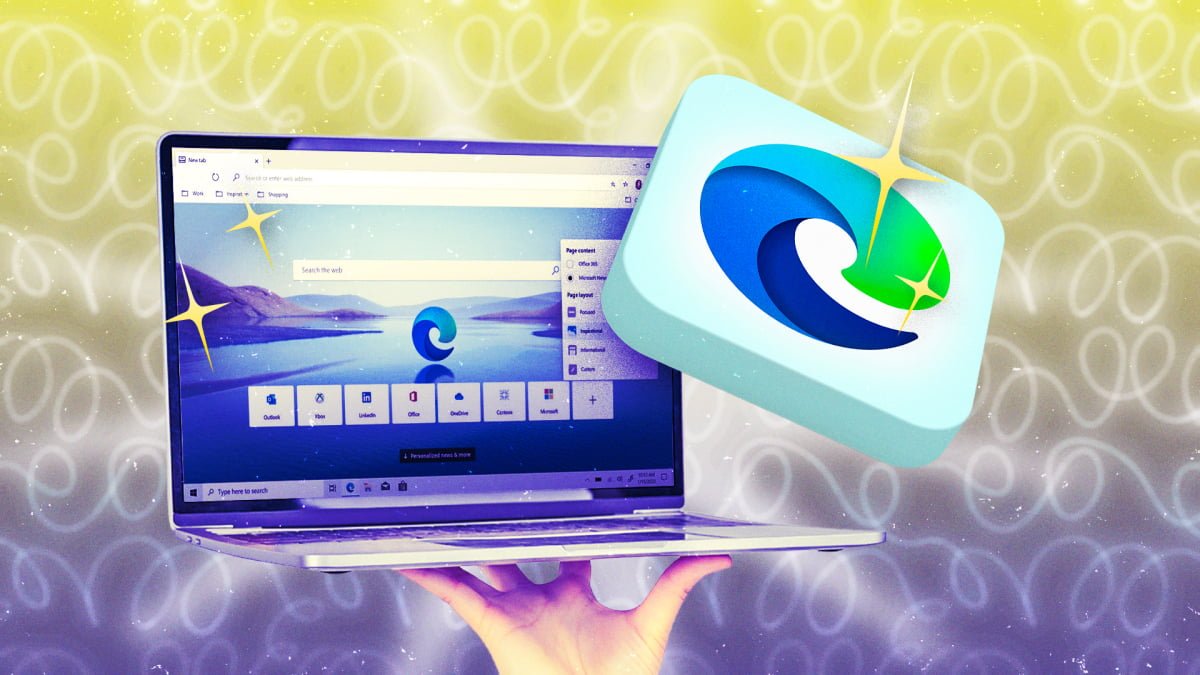
Microsoft Edge is one of the most popular browsers on the planet. The spiritual successor to Internet Explorer, Edge is a modern browser based on Google’s Chromium platform. That means you can use it with all modern Chrome extensions, along with a bunch of exclusive features that other browsers may not have. I’ve used Edge on Windows for quite a while, and these are my favorite hacks that I’ve found so far:
Use Drop to send links, files, and notes to other devices
Edge’s “Drop” feature is an easy way to send stuff from your desktop to mobile devices, and vice versa. Drop works by storing files on OneDrive, so you’ll need to sign in to the same Microsoft account on all devices to use this feature effectively. It’s not as fast as Apple’s AirDrop since it uses cloud storage, but Drop is much better for asynchronous sharing. This means your devices don’t have to be unlocked and on the same wifi network when you want to share things.
You can access Drop by opening Microsoft Edge on desktop, clicking the three dots in the top-right corner, and going to More tools > Drop. Install Edge on any devices you want to use Drop with (PCs, Macs, Android phones, iPhones, iPads, etc.) and make sure you sign in to your Microsoft account. Now, you can “drop” anything in Drop, and it’ll appear on all your devices. Note that Drop isn’t easily visible on Edge for mobile devices. You need to open the menu, select the All Menu option, and use the Edit feature to replace any one toolbar item with Drop.
Use Edge’s built-in task manager to kill resource hogs
Credit: Pranay Parab
Whenever Edge slows down, use the browser’s built-in task manager to locate the problem. I find this better than using Windows’ Task Manager (or Mac’s Activity Monitor): Browsers have dozens of processes running, making it difficult to identify the cause of a slowdown. With the Edge task manager, you’ll only see browser-related processes. Press Shift-Esc to access this, or go to the three-lines menu, followed by More tools > Browser task manager. Here, focus on Tabs & extensions. It neatly highlights the system resources each tab or extension is hogging. When you’ve found the culprit, select it and click End task. You can easily disable a heavy extension in the browser without closing tabs and worrying about losing your data.
You can even use the search box in the task manager to locate certain tabs, which is useful for those of us who open hundreds of tabs in the browser. The “Browser” tab in the task manager highlights processes related to keeping the browser running, which is best for technically experienced users to identify browser issues. Most people will find what they need in the “Tabs & extensions” section.
Use this shortcut to open two tabs side-by-side
Microsoft Edge has a feature called “Split screen,” which lets you open two tabs side by side, without opening a new window. This feature arrived on Google Chrome long after Edge shipped it. I love Split screen, but my only complaint is that it’s buried under the three-dots menu by default. You can change this by clicking the three dots, then heading to Settings > Appearance > Toolbar, and enabling Split screen. This adds a “Split screen” button to the toolbar, making the feature easy to access.
Once you’ve done that, open any tab, click the Split screen button, and you’ll see the two tabs side by side. You can use this feature to pair sets of tabs together, like Google Docs with YouTube to take notes while studying. Edge preserves all of your Split screen tabs as long as the window is open, so you don’t have to worry about setting up Split screen tabs repeatedly. When you’re in Split screen, you can click the three dots in the top-right corner of either tab to configure this feature to your liking. You can swap the two tabs’ positions, or switch to a vertical split-screen layout.
Try vertical tabs to free up screen real estate
Vertical tabs are the superior choice for all desktop browsers. It moves the tabs list to a single pane on the left, and expands the available screen space for your content. This means less scrolling, a bigger frame for watching videos, and generally more optimal use of screen real estate. You can enable this in Microsoft Edge by going to Edge settings > Appearance > Tabs, and enabling Show vertical tabs. You should also enable Hide title bar in vertical tabs for a streamlined look, and Collapse pane in the tab bar to reduce the width of the vertical tab bar.
Use AI tab grouping to organize your tabs automatically
Try using Edge’s AI tab grouping to organize your unwieldy number tabs. It’s not as good as manually making tab groups, but when you’re overwhelmed with more tabs than you can reasonably handle, this is a great strategy to sort out the mess. To use it, click the down arrow in the top-left corner of the browser’s window, and select Organize tabs. This feature groups tabs by subject (News & Media, Finance & Investment, etc.), and allows you to drag and drop tabs to customize your groups.
Use “energy saver” to reduce slowdowns
Microsoft Edge has an energy saver mode that automatically puts background tabs to sleep. This will reduce the chances of a browser slowdown when you have lots of open tabs, and also extends your battery life by an average of 25 minutes, according to Microsoft. To enable the feature, go to Edge settings > System and performance > Performance, and turn on Enable energy saver.
What do you think so far?
Turn off “Startup boost” to speed up your old PC

Credit: Pranay Parab
Startup boost is a great feature for anyone with PCs or laptops with powerful hardware. It keeps Edge running in the background with minimal resources, so the app can launch faster each time you open it. However, it’s not ideal for older computers, or for users who dislike apps running in the background after they’ve closed them. If your computer is on the older side, you’re better off without Startup boost. You can disable it by going to Edge settings > System and performance > System.
Disable Copilot to remove unnecessary AI features
While Edge has some useful AI features like tab organization, there are a whole bunch of features I never use. If you’re like me, take a minute to disable all unnecessary AI features. First, go to Edge settings > AI innovations, and disable Copilot Mode. This option may not be enabled on all accounts, so if you don’t see the toggle, you can move on.
Next, go to Edge settings > Appearance > Copilot and sidebar > Copilot. Turn off Show Copilot button on the toolbar. On the same page, click Manage Copilot settings > Privacy, and turn off Context clues, which stops the AI from using your browsing data for answers. You should also go to Edge settings > Start, home, and new tab page, and disable Copilot new tab page.
You can also go to Edge settings > Languages and disable all features that mention AI in the description. This includes Offer to translate videos on supported sites and Use ‘Help me write’ writing assistant on the web. Finally, if you don’t want to use AI tab organization either, you can turn it off by going to Edge settings > Privacy, search, and services, and disabling Organize your tabs.
Use this setting to ask Edge to read articles out loud
Edge has a bit of a hidden feature that lets it read articles to you (and, in my opinion, the voice sounds pretty natural). This is buried under the three-dots button > More tools > Read aloud. Alternatively, you can use the keyboard shortcut Ctrl-Shift-U (or Cmd-Shift-U on Mac), and the feature is also available on mobile platforms.
Use “Visual Search” to search for any item on the webpage
Visual Search lets you right-click to start a search for anything on a given webpage. For instance, you can reverse image search an item you spot in a YouTube video, or select a landmark in a picture to learn more about it. When you want to use this feature, be aware that it takes a screenshot of the webpage and sends it to Microsoft. This is a privacy concern, but to be fair, Microsoft warns you about that, and requires you to agree to a privacy statement if you want to use the feature. You can right-click any webpage in Edge, and select Visual Search to get started. The feature is also available on mobile versions of Edge.