No Result
View All Result
Global Finances Daily
  • Alternative Investments
  • Crypto
  • Financial Markets
  • Investments
  • Lifestyle
  • Protection
  • Retirement
  • Savings
  • Work & Careers
No Result
View All Result
  • Alternative Investments
  • Crypto
  • Financial Markets
  • Investments
  • Lifestyle
  • Protection
  • Retirement
  • Savings
  • Work & Careers
  • Login
Global Finances Daily
No Result
View All Result
Home Protection

Use ‘Spicetify’ to Give Spotify a Visual Makeover

February 23, 2024
in Protection
0
Use ‘Spicetify’ to Give Spotify a Visual Makeover


Spotify isn’t all that customizable straight out of the box. The home screen is populated by a combination of your recent listening and whatever the company is hoping to promote at the moment (right now it’s audiobooks). There’s not a lot you can do to change how the app looks and behaves.

But if customization is important to you, Spicetify is a great little tool for Windows, macOS, and Linux that allows for all kinds of Spotify customizations. This application, which is built and maintained by volunteers, offers everything from custom color schemes (including a Spotify light mode) to tweaks that let you do things like hide audiobooks entirely or put a sleeping cat on the progress bar. There’s even an app store-like interface you can use to quickly install tweaks from inside Spotify.

Setting up Spicetify

There’s no way to install Spicetify without using the command line; that is, by using the Terminal on macOS and the PowerShell on Windows. Don’t worry, though: it’s not too complicated. You’ll just need to head to the installation documentation and copy and paste a few commands—note that there are different commands for Windows and macOS/Linux. The script will handle the installation for you:


Credit: Justin Pot

Note that, for Windows users, Spicetify will not work if you installed Spotify using the Microsoft Store—you’ll need to download Spotify directly instead. After Spicetify installs, you should also install the Spicetify Marketplace, which will add a tab in Spotify itself for browsing and installing themes and add-ons. You can do this by typing “Y” after the Spicetify installer runs or, if you missed that step, by copying and pasting the command for the marketplace from the installation tutorial.

Using the Spicetify marketplace

After installing Spicetify you should see a shopping cart icon in the left-hand panel of Spotify. From here you can browser all of the extensions, themes, and snippets offered. Note that all of these are made by volunteer contributors, meaning some of them might not work with the latest Spotify updates. I found that more worked than not, though.

The Spicetify marketplace offers extensions and themes.


Credit: Justin Pot

The Extensions and Snippets sections allow you to add features to Spotify. I used this to banish all podcasts and audiobooks from the homepage, to hide all podcasts and audiobooks, and to copy lyrics by highlighting them. There’s even a little cat who will follow your mouse around, if that’s what you really want.

Custom Spotify themes

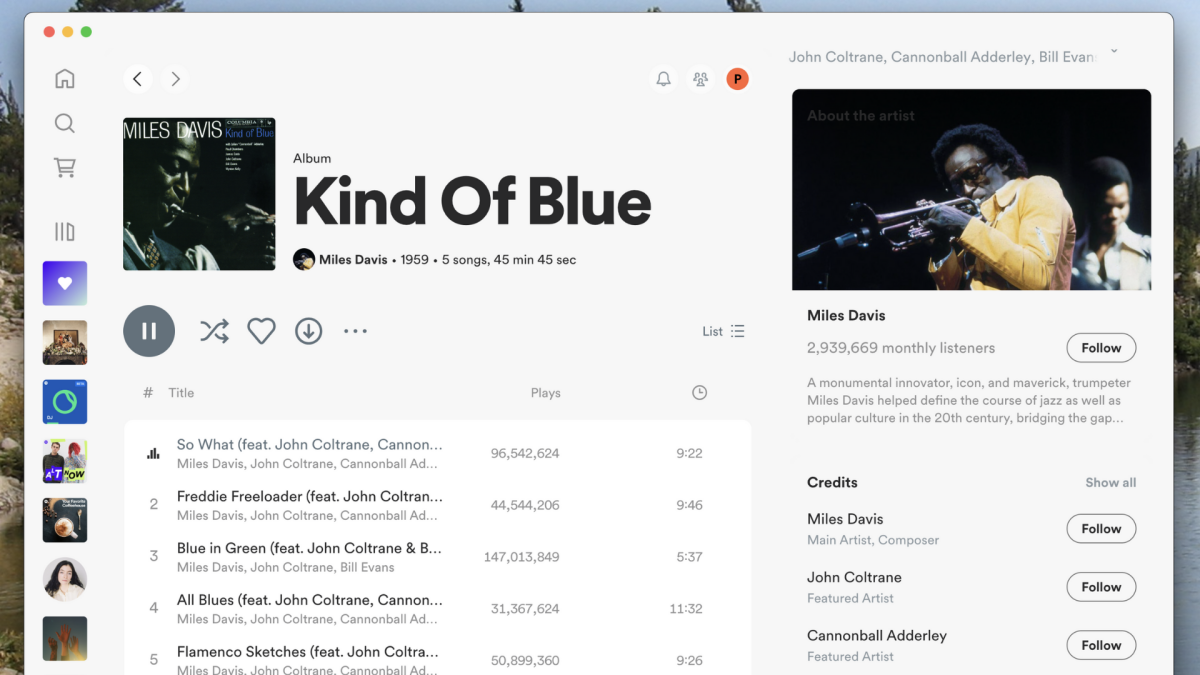
The marketplace also gives you access to a bunch of themes. These change the color scheme and overall appearance of the application. Some of these themes make everything a little more…blue.

A screenshot of Spotify with a blue theme playing "Kind of Blue" by Miles Davis

Get it? Because the theme is kind of blue? Nevermind.
Credit: Justin Pot

But there’s just about every color scheme you can imagine. Install a theme you like and it will show up right away. Many themes also offer multiple color schemes; you can toggle this at the top of the themes section in the marketplace.

Spicetify's somewhat hidden color scheme arrow


Credit: Justin Pot

Spotify’s user interface is very dark, regardless of your system-wide settings, but with the right theme you can make it bright. And there are even a few Extremely Weird™ themes, including one that makes Spotify look like a Terminal application.

Spotify but it looks like a command line app for some reason

For h4ckrs only.
Credit: Justin Pot

Updating Spicetify

Every once in a while, Spotify updates its desktop player and some of those updates break Spicetify. You’ll know this happens when all of your customizations, including the marketplace button, disappear. To get everything back, open the PowerShell or Terminal and type “spicetify update,” then hit Enter or Return. This should fix things; if not, the team is probably still working on a patch. Try again in a few days and you should be set. I’ve been using Spicetify for about six months and haven’t had to do this very often.




Editorial Team

Editorial Team

Related Posts

What Happens Now That Meta and YouTube Were Found Legally Negligent
Protection

What Happens Now That Meta and YouTube Were Found Legally Negligent

March 26, 2026
If I Had a Home Gym, This Is the Storage Rack I'd Buy During Amazon's Spring Sale
Protection

If I Had a Home Gym, This Is the Storage Rack I’d Buy During Amazon’s Spring Sale

March 26, 2026
This Budget Fitbit Is Only $70 During Amazon's Big Spring Sale
Protection

This Budget Fitbit Is Only $70 During Amazon’s Big Spring Sale

March 26, 2026
This Surprisingly Powerful Compressed Air Duster Is 27% Off Today
Protection

This Surprisingly Powerful Compressed Air Duster Is 27% Off Today

March 26, 2026
Google's Pixel Buds Pro 2 Are $60 Off for the Amazon Big Spring Sale
Protection

Google’s Pixel Buds Pro 2 Are $60 Off for the Amazon Big Spring Sale

March 25, 2026
Roblox Gift Cards Are Majorly Discounted During Amazon's Big Spring Sale
Protection

Roblox Gift Cards Are Majorly Discounted During Amazon’s Big Spring Sale

March 25, 2026
Load More
Next Post
After Earnings Disaster, Rivian Is in Serious Trouble

After Earnings Disaster, Rivian Is in Serious Trouble

Popular News

  • Oil prices fall on reports of a U.S. ceasefire proposal with Iran

    Oil prices fall on reports of a U.S. ceasefire proposal with Iran

    0 shares
    Share 0 Tweet 0
  • BlackRock’s Fink on why he won’t cash out private-credit investors: ‘Those are the rules, live with it.’

    0 shares
    Share 0 Tweet 0
  • L&G enters $1bn strategic partnership with Enosis Capital

    0 shares
    Share 0 Tweet 0
  • How to Contact Hilton Customer Service

    0 shares
    Share 0 Tweet 0
  • US gasoline prices to rise after attack on Iran, analysts warn

    0 shares
    Share 0 Tweet 0

Latest News

Woman pleads not guilty to attempted murder of singer Rihanna

Woman pleads not guilty to attempted murder of singer Rihanna

March 26, 2026
0

Woman pleads not guilty to attempted murder of singer Rihanna

Stablecoins and the battle for monetary influence

What infrastructure do companies use to add stablecoin payments?

March 26, 2026
0

Disclosure: This article does not represent investment advice. The content and materials featured on this page are for educational purposes...

What Happens Now That Meta and YouTube Were Found Legally Negligent

What Happens Now That Meta and YouTube Were Found Legally Negligent

March 26, 2026
0

Mark Zuckerberg leaving Los Angeles Superior Court last month. Credit: Jon Putman/Anadolu via Getty Images On Wednesday, a Los Angeles...

Bryan Johnson: Psychedelics may revolutionize anti-aging, psilocybin enhances neuroplasticity for mental health, and the default mode network’s role in cognitive rejuvenation

Bryan Johnson: Psychedelics may revolutionize anti-aging, psilocybin enhances neuroplasticity for mental health, and the default mode network’s role in cognitive rejuvenation

March 26, 2026
0

Key Takeaways Psychedelics are being explored as potential rejuvenation protocols for anti-aging. Research on psilocybin indicates it may have significant...

Global Finances Daily

Welcome to Global Finances Daily, your go-to source for all things finance. Our mission is to provide our readers with valuable information and insights to help them achieve their financial goals and secure their financial future.

Subscribe

  • About Us
  • Contact
  • Privacy Policy
  • Terms of Use
  • Editorial Process

© 2025 All Rights Reserved - Global Finances Daily.

No Result
View All Result
  • Alternative Investments
  • Crypto
  • Financial Markets
  • Investments
  • Lifestyle
  • Protection
  • Retirement
  • Savings
  • Work & Careers

© 2025 All Rights Reserved - Global Finances Daily.

Welcome Back!

Login to your account below

Forgotten Password?

Retrieve your password

Please enter your username or email address to reset your password.

Log In
This website uses cookies. By continuing to use this website you are giving consent to cookies being used. Visit our Privacy and Cookie Policy.