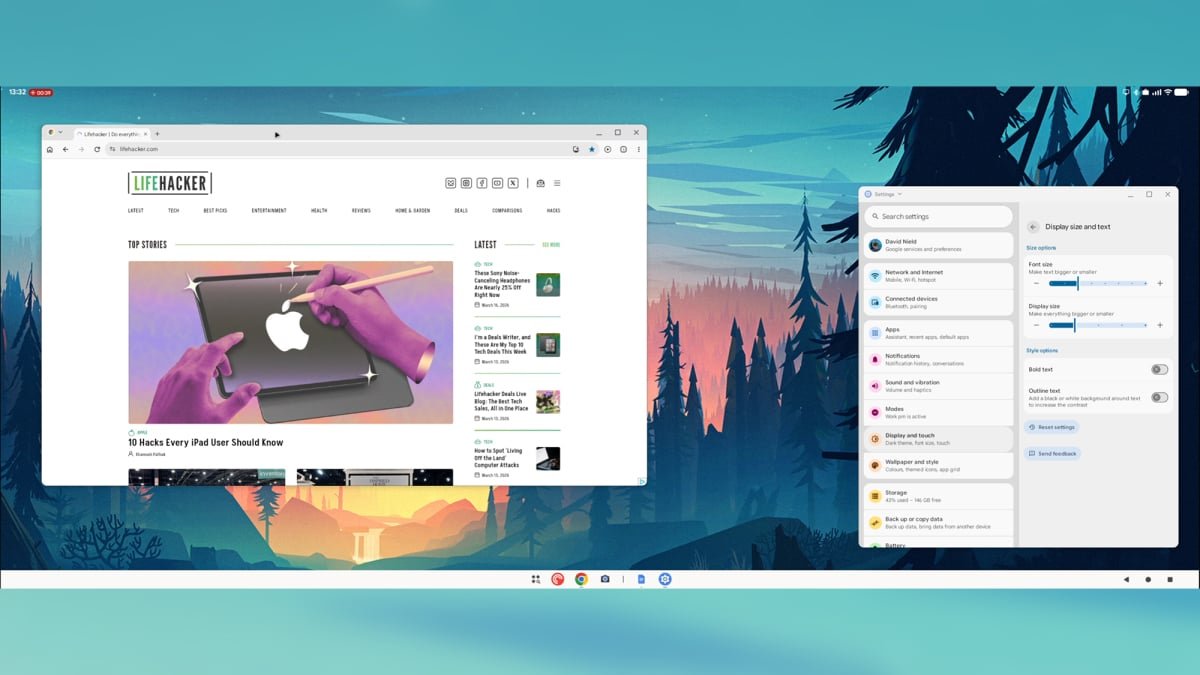
Galaxy phone owners have been able to use Samsung DeX to access a desktop mode for years at this point, and now Google Pixel users have a similar feature to call their own. The latest Android 16 QPR3 release, pushed out at the start of March 2026, lets you plug a Pixel phone into a monitor and access a desktop-like interface.
If you’re completely new to these desktop modes, they let you operate your phone as if it’s a Windows or macOS computer (sort of). The Android software and the apps don’t change, but you get a taskbar at the bottom of the display, the ability to run apps in windows alongside each other, and a few other helpful tweaks.
In theory, this can be a real boon to productivity. Sit down at your desk, and you can carry on using all the apps you’re familiar with on your phone, only with the added convenience of a larger display, as well as a mouse and keyboard. Mobile apps like Slack and Google Docs are now capable enough that most features available on the desktop can be used on mobile.
A simple launcher lets you access your apps.
Credit: Lifehacker
There are quite a few caveats, however. You need a Pixel 8 or newer for this to work, as well as a USB-C DisplayPort connection. You’re also going to need a Bluetooth mouse and keyboard connected to your phone to make the most of this: Pixels don’t yet have the use-your-phone-as-a-trackpad functionality of Samsung DeX.
If you do have the necessary hardware in place for this to work, it’s worth giving it a try, even at this early stage. You might find it’s helpful for working on the go and hot desking, or for finding a quiet place to work somewhere at home.
Using the desktop mode on a Pixel
While the desktop mode is now officially part of Android proper, don’t expect a flawless experience just yet. I managed to get my Pixel 9 hooked up to a monitor via a USB-C-to-DisplayPort connection, but this only worked directly—not through a hub. The display resolution maxes out at 1080p.
When you connect a compatible monitor to your Pixel’s USB-C port, you’ll see the choice to Mirror the phone display to the big screen or to open the new Desktop mode; it’s the latter one you want. With that done, you should see the desktop interface, and you can start clicking around with your connected mouse.

You can pin apps side by side.
Credit: Lifehacker
Everything is pretty easy to understand: You’ve got a taskbar at the bottom where your apps live, navigation buttons in the lower right corner, and a launcher button for opening more apps. Each app launches in a window that can be moved or resized as needed. If you hover over the resize button, you’ll find you can snap two apps side by side, if you want to.
What do you think so far?
One key benefit is that Chrome runs in desktop mode, so you get the full web experience—it’s great to be able to browse websites properly, rather than having to navigate through mobile versions. That said, when you try to log into sites such as Google Docs or Slack, you’ll get kicked out into the equivalent Android app, so it’s not quite the same as using an actual desktop computer.
It is possible to get stuff done, for sure—I typed out half of this article through Google Docs for Android on an external monitor—and for something in its early stages, it’s definitely usable. I appreciated being able to launch podcast and chat apps on a larger display and not have to worry about whether they were syncing back to my phone properly.

Many apps—including Netflix—don’t take full advantage of the extra space.
Credit: Lifehacker
App developers clearly haven’t caught up to this desktop mode yet. Apps like WhatsApp had misaligned buttons and oversized text in places, while most apps reverted to a standard tablet interface rather than a desktop one. With Netflix, for example, browsing the available titles felt like using a phone but just on a much bigger scale.
These problems will most likely get sorted over time, and it would be nice to see Google continuing to add features as well—such as the ability to use your phone as a trackpad for the desktop interface, once it’s connected, and better native monitor resolution support. With a bit more polish, this could be a seriously useful Android upgrade, and hopefully we’ll hear more about it at Google I/O in May.