The iPhone’s Focus modes are perhaps its most underrated feature. Once customized, they can become incredibly powerful tools that put you in control of how your iPhone can grab your attention. They can take some time to set up, but it’s worth it. Once you’ve got everything squared away, you’ll have timed boundaries from certain apps, people, and even your work, for that mythical work-life balance. Forget having a personal phone and a work phone—a couple of well-tuned Focus modes might be enough.
Diving into Focus modes
Credit: Khamosh Pathak
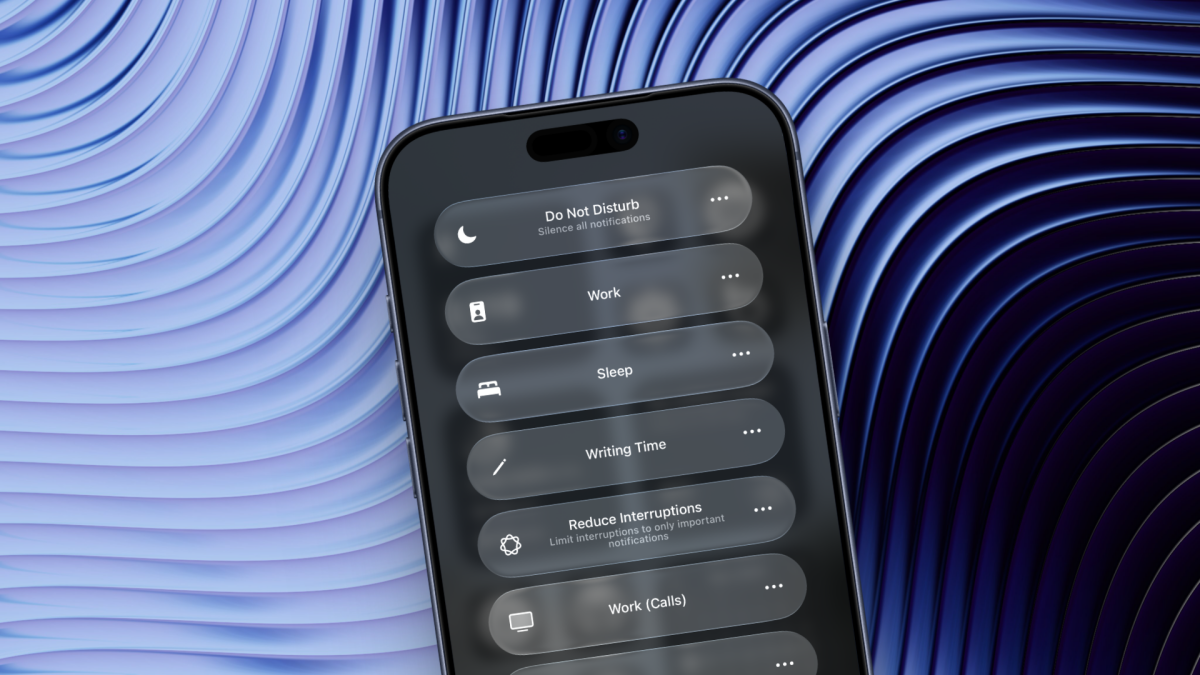
What used to be Do Not Disturb on iPhone is now Focus mode, which comes with many more options. Open the Control Center and tap the Focus button to see a list of all available Focus modes. The familiar Do Not Disturb option will be up top, but you’ll also see helpful Focus modes premade by Apple, Sleep being a prominent example. If you have a device that supports Apple Intelligence, you’ll also see a mode called Reduce Interruptions, which automatically mutes all notifications except the really important ones. Other premade modes include Personal, Work, and Sleep, which you can all customize to your own liking.
How to set up your own Focus mode
To get the most out of Focus Modes, you should set some Focus modes for yourself. One for work and one for personal time would be a great place to start. Go to Settings > Focus and tap the Plus button at the top. Here, choose the Custom mode option to get the most flexibility. Give it a name, icon, and tap Next. Then, tap Customize Focus.

Credit: Khamosh Pathak
This is where you’ll do most of your work. First, tap Choose People and select if you want to allow notifications from only a couple of people, or if you want to silence notifications from particular folks. If you’re setting up a Focus mode for personal time, you might want to stop notifications only from your boss and colleagues. Choose the people to allow, and tap Next. Then, choose who is allowed to call you. You can limit it to just your Favorites, or only a handful of people.

Credit: Khamosh Pathak
Then, tap Choose Apps and follow the same process for apps as well, either allowing notifications from some apps, or only silencing notifications from particular apps. For example, if you’re setting up a Focus mode for personal time, you might want to disable notifications from work apps like Slack, Teams, Gmail, and more. Tap into the Options menu, and you can also choose to show silenced notifications on the Lock Screen, or to dim the lock screen every time that Focus mode is enabled.
Next, take some time to customize what you see when a Focus mode is enabled. Apple will let you choose a distinct Lock screen, Home screen and even an Apple Watch watch face per Focus mode. For example, your work Focus can feature just your calendar and to do list. This will go a long way towards cementing the Focus state in your mind. For example, when I’m in my Writing Focus mode, my home screen is devoid of everything, including my tasks widget and communication apps.
What do you think so far?

Credit: Khamosh Pathak
Then, you’ll see a Set a Schedule section. Here, you can turn on a Smart Activation feature that will automatically enable a Focus mode depending on your location, app usage and so on. This has been hit or miss for me, so I would advise you to avoid it for the most reliable results. But you can definitely create a manual schedule using the Add Schedule button. Here, You can trigger a Focus mode to automatically start or stop at a certain time of day.

Credit: Khamosh Pathak
You can even use Focus Filters to further customize exactly what apps can show you when you’re in a Focus mode. For example, you can choose to only see your work calendar when you’re in your work Focus, but not your other calendars. These filters work for Apple’s apps and even third-party apps.

Credit: Khamosh Pathak
Lastly, you can choose to enable the Intelligent Breakthrough & Silencing feature that’s found at the top of the Focus page. If you have an iPhone with Apple Intelligence enabled, you’ll see this setting. It uses on-device intelligence to allow priority notifications to interrupt you even when you’re in silent mode. This goes over all other customizations that you might’ve done. But, being an Apple Intelligence feature, its reliability can be a bit iffy. Based on personal experience, I would recommend you take the time to fully customize the Focus mode to your liking instead of handing some of that work over to Apple Intelligence, as it gets things wrong for me fairly often.