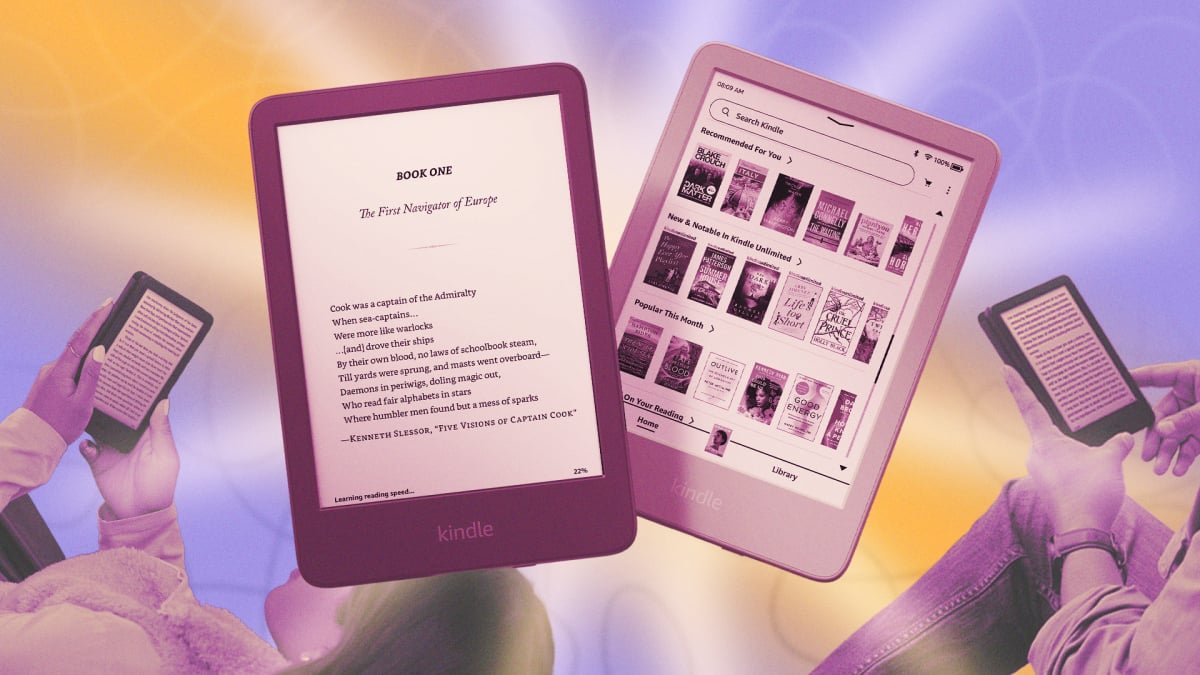
The Kindle has become the default e-reader for many bookworms, and I get it. I’ve used Kindles for well over a decade, and I’ve enjoyed using my latest Paperwhite quite a bit. It helped me read more than 30 books last year, so I’m not complaining.
The basic Kindle setup is okay, but if you learn your way around the device’s gestures, hidden features, and additional services, you can really get a lot out of this unassuming reading device.
Kindle Gestures that you really should know
There’s only one button on the Kindle. Everything else happens using touch. And like every touchscreen device, there are countless gestures you need to know to use the device. The most obvious ones are for the page turns. You can swipe or tap right to go to the next page and swipe or tap left for the previous one. If you have a Paperwhite Signature Edition, you can also double tap on the back or sides of the device to move to the next page.
Tap on the top of the Kindle to bring up the toolbar, where you can go back to the Home screen, change the settings, view the table of contents, and more.
If you tap the bottom left corner, you can cycle between different stats like reading progress, page number, time left in chapter, and more. Oh, and if you want to quickly change the font size, just pinch in or out to zoom in on the text (like you would zoom into images on your phone).
Want to take a screenshot of what’s on your Kindle screen? Tap any two opposite corners of the screen together (top-right and bottom-left or top-left and bottom-right). The screen will flash for a second, and the image will be saved as a PNG in the root directory. Connect your Kindle to your Mac or PC to retrieve the image file.
Easily navigate between chapters
Credit: Khamosh Pathak
The Kindle isn’t the easiest device to navigate, especially when you’re reading a book where you need to jump between different chapters. Here, again, a hidden gesture can help. Swipe up from the bottom of the screen to bring up a new Page Flip mode. You’ll see a slider at the bottom, which you can use to move forward and back. There are buttons to jump to the next chapter as well (I use this all the time).
Switch to dark mode and schedule warm light

Credit: Khamosh Pathak
If you love reading in bed, you’ll want to enable dark mode. Pull down from the top edge to bring up the quick settings panel. Here, tap the Dark Mode button to quickly invert the colors. You’ll now read white text on a black background. While you’re here, also check out the Warm Light settings (if you have a Kindle Paperwhite, Oasis, or Scribe). Use the slider to increase the warmth of the screen, making it more amber-toned.

Credit: Khamosh Pathak
This is especially useful for reading in the evenings or at night, but I like it so much I keep it enabled at all times. You can also set your color temperature to change on a schedule, so that the display slowly warms up in the evening hours. Do this under Settings > Device Options > Display Settings > Schedule.
Lock your Kindle

Credit: Khamosh Pathak
Not everyone needs to know what’s on your Kindle, right? If you read a lot in school, or public areas, you can lock down your Kindle using an optional setting. Go to Settings > Device Options > Security and Privacy > Device PIN. You can then set a numeric unlock code up to 12 digits long, but it might be easier to stick to a four or six-digit code.
Send documents and books to Kindle wirelessly

Credit: Khamosh Pathak
Reading on your Kindle doesn’t need to be limited to books you buy from the Kindle store. In fact, you can send any PDF or DRM-free ebook to your Kindle, and wirelessly. I have previously outlined multiple methods for doing this, ranging from using an email address, to using the Kindle app. But the one I keep coming back to is Amazon’s own Send to Kindle website. Open it on any browser, sign in with your account, drag and drop a document in a supported format (.DOC, .DOCX, .HTML, .TXT, .PDF and .EPUB), and send it off. Once you sync your Kindle using Wi-Fi, these documents will be available to read on it, just like that.
Show your book covers as screensavers

Credit: Amazon
Every time I set up a new Kindle, I’m surprised that this is a feature that I still need to enable manually. By default, Kindles shows a couple of images as screensavers when turned off. That’s because of the e-ink display, which lets them show a static image without using power. These default screensavers, though, are boring. You can make this feature much more interesting (and useful) by showing the cover of the book you were last reading as the screensaver instead. Go to Settings > Device Options and enable the Display Cover feature.
What do you think so far?
Read long articles on Kindle

Credit: Khamosh Pathak
Kindle’s built-in browser is pretty barebones and laggy, but you can still read long articles on it. For a smoother experience, though, you can wirelessly send articles to your Kindle, where they’ll show up in form of books, devoid of ads, formatting, and images.
The simplest way to do this is by using Amazon’s Send to Kindle Chrome extension. Visit a page, trigger the extension, and send it off to your e-reader.
If you don’t use Chrome, you can also use a dedicated service like Push to Kindle to send articles to your Kindle. You can send up to 10 articles a month for free, and a $2.99/month plan unlocks all limits.
Export your highlights and notes

Credit: Khamosh Pathak
If you’re using your Kindle to research or read non-fiction books for school or work, you’ll end up with a lot of highlights. Those highlights, just sitting in your Kindle, aren’t that useful. Amazon has a dedicated website that lists all the highlights from all the books you’ve purchased via the Kindle Store, but it’s not your only option.
Personally, I prefer Clippings, which also works for content not bought from the Kindle Store. With it, you can import all the highlights and notes from your Kindle books and personal documents using a browser extension. You can view and organize all your notes from your browser, too, but if you want to export them to a document, you’ll need to pay for a $1.99/month Professional plan.
Borrow books to read from your local library, for free
There are many places where you can rent and borrow books to read legally and for free. The most popular option is using the Libby app from Overdrive, which loans you books via your library card or student ID. In the Libby app, go to Shelf > Loans > Read With… > Kindle. Here, sign in with your Amazon account and verify your Kindle device. Then, tap Get Library Book. Voila, an ebook from your local library will instantly show up on your Kindle device.
De-Amazon your Kindle
Lastly, you can take inspiration from my colleague Pranay, who uses his Kindle without any Amazon services. You can set up a Kindle without an Amazon account and use it as a perfectly good e-reader. You can buy DRM-free books online from various sources and transfer them to your Kindle simply by transferring the ebook files to your Kindle storage or using the Send to Kindle feature I talked about above.