No Result
View All Result
Global Finances Daily
  • Alternative Investments
  • Crypto
  • Financial Markets
  • Investments
  • Lifestyle
  • Protection
  • Retirement
  • Savings
  • Work & Careers
No Result
View All Result
  • Alternative Investments
  • Crypto
  • Financial Markets
  • Investments
  • Lifestyle
  • Protection
  • Retirement
  • Savings
  • Work & Careers
  • Login
Global Finances Daily
No Result
View All Result
Home Protection

These Hacks Let You Force Quit Frozen Apps on Windows

June 11, 2026
in Protection
0
These Hacks Let You Force Quit Frozen Apps on Windows


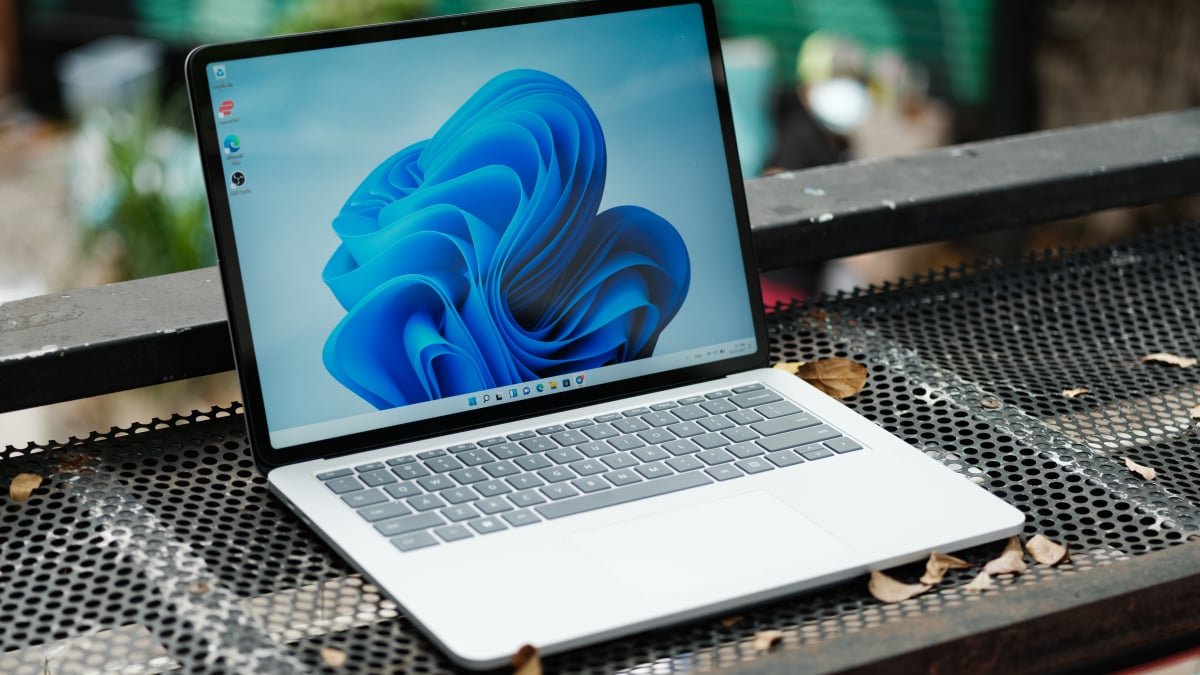
My PC is nine years old, and even though I’ve upgraded its SSD and RAM, it does experience the occasional freeze. It most often happens when I leave Age of Empires 2 running while I complete a few quick chores around the house. Once I’m back at my PC, the game sometimes becomes unresponsive, and my only option is to hold down the power button for a forced shutdown. This is not good for your computer, and ideally, you’d want to try other options first. So, I’ve been looking for a solution to force-quit frozen apps, and this Reddit thread gave me a few solid ideas. Here’s what I found worked for me:

Ensure that Task Manager is always on top


Credit: Pranay Parab

If you’re trying to launch Task Manager, it may get stuck behind a full-screen app. To prevent this, you can force the app to always appear above all other apps on your computer. You can open Task Manager by pressing Ctrl-Shift-Esc or searching for the app in the Start menu. Once Task Manager is running, click Settings in the left pane, and under “Window management,” enable Always on top.

Create a new desktop

If a full-screen app is frozen in Windows 11, you can use the keyboard shortcut Win-Ctrl-D to create a new desktop on your PC. This will force Windows to switch to the newly created desktop, and allow you to access Task Manager or other apps that you need. Once you’ve used this tip to handle the rogue app, you can press Win-Ctrl-F4 to close the new desktop. To move between different desktops in Windows, press Win-Ctrl-→ or Win-Ctrl-←.

Use the power button to enable sleep mode

Power button settings in Windows 11.


Credit: Pranay Parab

Pressing the power button usually turns off your computer. Most manufacturers have you long-press the power button to do a forced shutdown, but this should only be used in emergencies. This is the equivalent of yanking out the power cord to turn off your computer, and you risk losing data by using this option. If you’re encountering a frozen app, you can configure the power button to put your PC in sleep mode instead. The benefit is that waking your PC opens the lock screen, and you can use that to access Task Manager.


What do you think so far?

To set this up, open the Start menu and search for “Control Panel.” Open Control Panel, and in the top-right corner of the window, click the drop-down menu next to “View by.” Select Large icons or Small icons. This will reveal all Control Panel features, including Power Options. In the left pane, select Choose what the power buttons do. Now, click the drop-down menu next to “When I press the power button,” and click Sleep. You can press the power button on your PC now, and it’ll put the computer to sleep.

Try a handy keyboard shortcut

Microsoft coded a hidden keyboard shortcut into Windows for you to use when encountering a black screen. Maybe your computer isn’t frozen, but an app is stuck, or there’s an issue with a display driver leading to a black screen. In these cases, use the keyboard shortcut Win-Ctrl-Shift-B: It’ll recreate your desktop and let you avoid a forced restart of your computer.



Editorial Team

Editorial Team

Related Posts

I Tried macOS 27 and Here Are 5 Upgrades You Should Be Looking Forward To
Protection

I Tried macOS 27 and Here Are 5 Upgrades You Should Be Looking Forward To

June 11, 2026
Four Reasons Not to Use ‘Buy Now, Pay Later’
Protection

Four Reasons Not to Use ‘Buy Now, Pay Later’

June 11, 2026
These Are the Results of the First Round of Lifehacker's Big Guessing Game
Protection

These Are the Results of the First Round of Lifehacker’s Big Guessing Game

June 10, 2026
Sony's Lightest Noise-Cancelling Headphones Are Over 50% Off Before Prime Day
Protection

Sony’s Lightest Noise-Cancelling Headphones Are Over 50% Off Before Prime Day

June 10, 2026
One Reason to Be Glad Your Apple Watch Won't Support watchOS 27
Protection

One Reason to Be Glad Your Apple Watch Won’t Support watchOS 27

June 10, 2026
Best Buy’s Tech Fest Sale Is the Response to the Prime Day Sale
Protection

Best Buy’s Tech Fest Sale Is the Response to the Prime Day Sale

June 10, 2026
Load More

Popular News

  • Josh Garber

    How to Contact Hilton Customer Service

    0 shares
    Share 0 Tweet 0
  • 7 Skincare Products To See Your Skin Through To Spring

    0 shares
    Share 0 Tweet 0
  • Diageo toasts so-called ‘Big Fat Indian Weddings’

    0 shares
    Share 0 Tweet 0
  • TONY HETHERINGTON: What’s the truth about this energy firm promising me 12% returns?

    0 shares
    Share 0 Tweet 0
  • Guide to Content Marketing for Small Businesses

    0 shares
    Share 0 Tweet 0

Latest News

These Hacks Let You Force Quit Frozen Apps on Windows

These Hacks Let You Force Quit Frozen Apps on Windows

June 11, 2026
0

My PC is nine years old, and even though I've upgraded its SSD and RAM, it does experience the occasional...

Cointelegraph

XRP Demand Falls 91.5% As Traders Eye $0.63 Support

June 11, 2026
0

XRP's (XRP) onchain activity has contracted sharply since its 2025 peak. The 90-day network fee average fell by 91.5%, while...

Trump warns Iran of new strikes as oil prices rise - 5

Iran closes Strait of Hormuz as US strikes deepen tensions

June 11, 2026
0

Iran’s main military command has closed the Strait of Hormuz to all vessels after fresh US attacks. Summary Iran’s Khatam...

I Tried macOS 27 and Here Are 5 Upgrades You Should Be Looking Forward To

I Tried macOS 27 and Here Are 5 Upgrades You Should Be Looking Forward To

June 11, 2026
0

Apple unveiled the macOS 27 Golden Gate name with a flourish. Credit: Apple There was a lot to take in...

Global Finances Daily

Welcome to Global Finances Daily, your go-to source for all things finance. Our mission is to provide our readers with valuable information and insights to help them achieve their financial goals and secure their financial future.

Subscribe

  • About Us
  • Contact
  • Privacy Policy
  • Terms of Use
  • Editorial Process

© 2025 All Rights Reserved - Global Finances Daily.

No Result
View All Result
  • Alternative Investments
  • Crypto
  • Financial Markets
  • Investments
  • Lifestyle
  • Protection
  • Retirement
  • Savings
  • Work & Careers

© 2025 All Rights Reserved - Global Finances Daily.

Welcome Back!

Login to your account below

Forgotten Password?

Retrieve your password

Please enter your username or email address to reset your password.

Log In
This website uses cookies. By continuing to use this website you are giving consent to cookies being used. Visit our Privacy and Cookie Policy.