We may earn a commission from links on this page.
When I first learned of the Skylight Calendar, I thought it as a family tool. After all, these kinds of devices that aggregate calendars and to-do lists, like the Hearth Display, generally advertise to families as a way to stay organized. But I live alone and use my Skylight every day, and I find it spectacularly useful even without kids.
The Skylight is a digital hub meant to help organize your life, and while the company also has digital picture frames, the Skylight Calendar is the most useful: It’s a calendar aggregation tool, to-do list, and dinner planner, along with being a digital picture frame. The Skylight Calendar looks like a cross between a tablet and a framed picture, and it comes in a standard 15-inch version or gigantic 27-inch Max version that you can mount on your wall vertically or horizontally with a simple clamp.
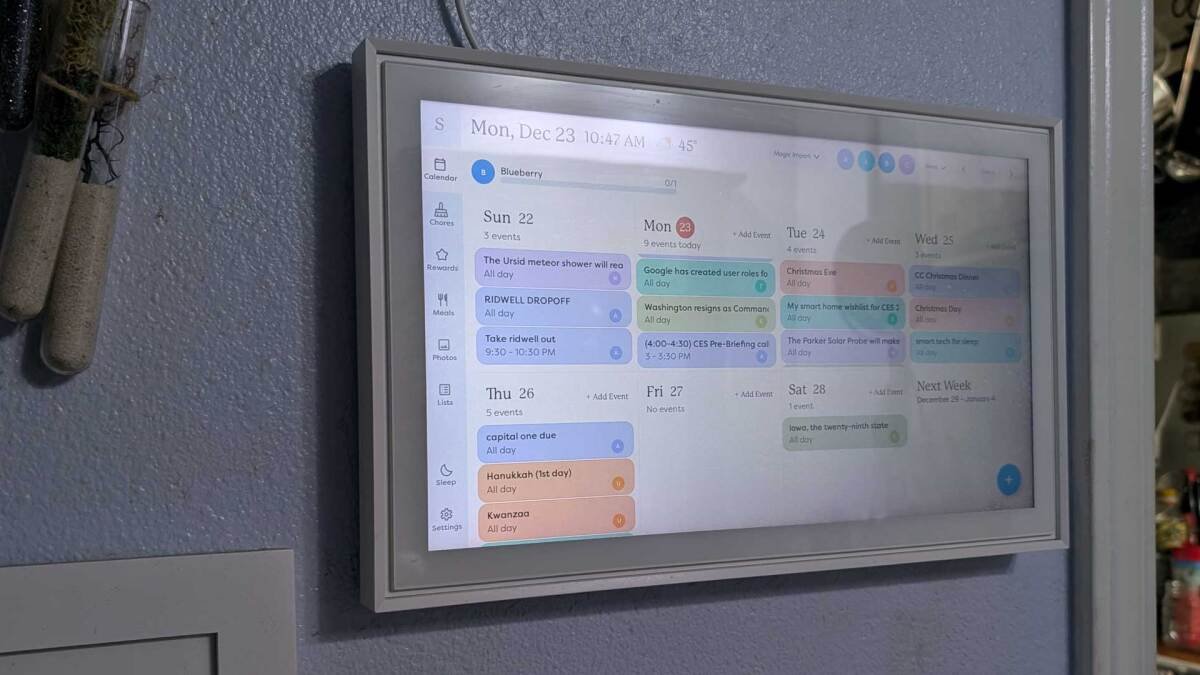
The Skylight’s display has a series of tabs on the left that scroll through its main functions, the most important being the calendar, to-do lists, and photos. You can set a default screen by tapping the top-left menu and choosing the view you’d prefer. You can also set up hours for your Skylight Calendar to sleep by tapping the menu and selecting “Sleep Mode.” I set mine for 11 p.m. to 5 a.m., but a simple tap will always wake the display, and I haven’t had to double tap or wait for the screen to respond from lag.
The Calendar functionality is the best part of Skylight Calendar
Credit: Amanda Blum
The calendar is easily the most functional part of the Skylight. You can pull in your existing Google, iCal, Outlook, Cozi, or Yahoo calendar, and they can seamlessly sync to your Skylight moving forward. You can pull in multiple calendars from multiple sources too, each color coded, so you can choose different colors for different members of your family (or if you’re single like me, use color coding to differentiate work tasks from home). You can also enter custom events directly into Skylight, but I suspect most people don’t do that since most of us already have digital calendars elsewhere, and there’s not much you can do with a Skylight calendar except see it in your app or display.
The Skylight Calendar is also a digital picture frame

Credit: Amanda Blum
The market is full of digital picture frames like the Aura and Pexar, and there are family management hubs like the Hearth Display that also allow you to upload custom photos. The Skylight Calendar walks the line between the two: It’s a shared calendar and planning tool, but it’s still a digital picture frame (if you have a subscription to the Pro plan), and Skylight encourages you to share pictures with other users. People can send photos to you using the app if they’re a shared user, or they can email the pictures to your designated Skylight email address. As the administrator, you can then choose which pictures you want to show on your Calendar. So long as the display is set to photos, your Skylight will scroll through whatever is approved.
I was a little perplexed by the idea of sending Skylight photos by email, but in reality, the Calendar isn’t meant to be cutting-edge tech. If you’ve got older parents or relatives who don’t want another app, an email is just an easier way to send images. My friends with and without Skylights still send me pictures of their kids, and in return I send them pictures of whatever I’m cooking and of my doberman in onesies. In this way, I like the Skylight as a less expensive hub that can be accessible to outside family and friends.
How to use Sidekick for task, chore, or event uploads

Credit: Amanda Blum
Skylight has a feature called Sidekick (with the Pro Plan subscription), which can take any image of text—a cookbook recipe, school flyer, or typed list, for example—and add it to the appropriate Skylight category. You can import events, plan meals, and to-do lists from PDFs, emails, or images, and it surprised me how well it works. I can take pictures of my to-do list from ToDoist, and Sidekick transcribes them to separate tasks on my Skylight. It’s not technologically forward, but it works. I also had my friend send me her most aggravating PTA flyer, and Sidekick got the event name, date, location, and details accurate.
You can also use Sidekick as a microphone to tell Skylight about your event, to-do list, or recipe. I’d prefer that Skylight sync with my voice assistants like Siri and Google Assistant so I could add things quickly to lists, but it’s only a few swipes to access the Sidekick tool and add items to a grocery list.
You can create custom Skylight lists

Credit: Amanda Blum
Skylight offers several ways to custom to-do items. You can make as many lists as you like, from shopping to to-do lists, with a few notable limitations: subtasks aren’t available, you can’t reorder tasks, you can’t assign deadlines, and you can’t assign a task to a specific user like you can with a Hearth Display. I still find these simple lists usable, but if you’re looking for something more functional, you’ll have to look elsewhere or use the “Chores” feature.
Chores are reusable, assignable lists
Although the name implies a way to farm out tasks to younger family members, Chores is actually the functional task list. You can create chores and assign them to members of your family, assign deadlines, make it recurring if needed, and assign a reward value for the task (Skylight calls these “stars”). You can access Rewards in a separate tab in your app and assign them, let users redeem them, or remove them.
Again, this isn’t as functional as, say, Asana or ToDoist—you can’t break chores out to separate lists, only individual chores, and I question why “Lists” exists when it’s a less functional version of Chores—but you can choose how these tools fit your family. Perhaps my greatest annoyance is that you can’t use Sidekick on Chores, so you can’t import lists or add to them on the fly through the microphone.
How to create meal plans with your Skylight Calendar

Credit: Amanda Blum
The Skylight meal planning tool (with a Pro Plan subscription) can take your preferences into account and plan an entire menu around them. (I was curious how well the meal planner would work around my preferences given that you tell the planner your preferences in a plain text box, so I entered, “I don’t like oatmeal,” and it removed all the suggested oatmeal breakfasts from my planner.) You can upload your own recipes, use Sidekick to upload pictures of your favorite ones, or save Skylight recipes you to your recipe box. You can also easily add the planned meals to your grocery shopping list. While I can see this being a great family tool, I like it as a tool for myself, a single person. There are legions of dedicated meal planning apps, and a number of them are probably better than Skylight, but it’s a nice feature to have in a comprehensive organizational tool.
My biggest frustration with the Skylight Calendar
When I got my Skylight a year ago, my biggest disappointment was that it had all this additional functionality—from to-do lists to meal planning—but it didn’t allow you to aggregate from existing apps like ToDoist, Asana, or any number of meal planning apps. As a workaround, I found that most apps I use, including ToDoist, can be synced to a Google calendar, which I then bring into my Skylight to live on my calendar. I would obviously prefer to have those tasks in the To Do tab of my Skylight, but I’ll have to wait until that functionality is added.
How much does a Skylight Calendar cost?
The Skylight Calendar runs $319.99 for the 15-inch version and the gigantic 27-inch Max Calendar is $599 on backorder. Skylight offers an annual $39 subscription called a Pro Plan. It’s not required, but most of the above features, from using photos, its import tool, and meal planning, are only possible with the Pro Plan. The first month of the Skylight Pro Plan is free though, so you can try it out to see the difference is meaningful for you.
Is the Skylight Calendar worth it?
Most families are likely already using apps for to-do lists, calendaring, and maybe meal planning. If you’re willing to invest $300 in a central family hub, Skylight can be fantastic. I also think it’s great as one person: As a person with ADHD, it’s invaluable. I have my calendar mounted in my bathroom, so it’s one of the first things I see each morning and reminds me of my to-do items and meetings each day. There are more expensive family management tools out there like the Hearth Display, but they can run almost $600, and I’m not sure if they offer double the functionality.