The following content is brought to you by Lifehacker partners. If you buy a product featured here, we may earn an affiliate commission or other compensation.
TL;DR key takeaways:
-
The Samsung Galaxy S26 Ultra is built for the three things that trip up most phones at concerts: low-light scenes, distant performers, and a crowd that doesn’t stand still.
-
Turn on Super Steady[1] with Horizontal Lock before the lights go down so your footage stays level, even when the crowd starts moving.
-
Nightography[2] is cued up automatically in low-light photos (one tap to activate); in video mode, it runs from the moment you press record.
-
The 50-megapixel telephoto’s 5x optical zoom and 10x optical-quality zoom mean you can get close-ups of the performers from wherever you’re standing.
Anyone who’s been to a life-changing gig knows the stinging disappointment of attending the best concert of your life, only to get home, eagerly relive the set from your camera roll, and find nothing but distorted, blurry clips.
With the Samsung Galaxy S26 Ultra, you can say goodbye to post-show letdown. The camera system in Samsung’s latest flagship is built to perform under the pressure of dim venues and packed crowds, so you can stay present for the show and trust the footage will live up to your memories. A 200-megapixel main sensor paired with a wider F1.4 aperture pulls in more light to keep detail sharp after dark, and Galaxy AI tools[3] handle the rest once you’ve made it to the after-party.
Here’s a how-to guide for shooting stable, detailed footage during the set and turning your highlights and stills into post-worthy content.
Step 1: Sort your settings before filming
Before the support act walks onstage:
-
Open the Camera app and switch to Video mode.
-
Tap the Super Steady[4] icon (a figure-in-motion symbol at the top of the screen) and select the Horizontal Lock option at the right-hand side of the menu.
Super Steady uses the phone’s gyroscope and accelerometer to counter unwanted movement; Horizontal Lock keeps the horizon flat even when you’re being knocked around by the crowd.
Step 2: Zoom in on the action without fighting the crowd
Standing tickets three rows from the back? The telephoto lens on the Galaxy S26 Ultra lets you get an up-close-and-personal perspective anyway. The 50-megapixel telephoto features 5x optical zoom, 10x optical-quality zoom, and up to 100x Space Zoom for photos, so you can frame tight shots of the performers from wherever you’re posted up (even if that’s in the very back of an arena).
To use the feature:
-
Open the Camera app and frame your shot. The zoom controls sit along the bottom of the viewfinder as a row of shortcut buttons (0.6x, 2x, 5x, etc.).
-
For 5x optical zoom, tap the 5x shortcut button or pinch out with two fingers until the viewfinder lands on 5x. This zoom level uses the lens itself to magnify the subject, which means no quality loss in either Photo or Video mode.
-
For 10x optical-quality zoom, tap the 10x shortcut button or keep pinching out. This combines optical zoom with on-device processing to hold detail at longer distances; it works in both Photo and Video mode.
-
Space Zoom extends up to 100x for still photos and up to 25x for video. To activate, keep pinching out past 10x, or tap the zoom number and type a value. A small preview window will appear in the corner of the viewfinder to help you locate and frame your subject.
If you’re zooming beyond 10x, consider bracing your phone against a railing or seat-back, since the smallest hand movement at that level of magnification can affect the frame.
Step 3: Rely on Nightography once the house lights go down
Getting great media in less-than-ideal lighting is straightforward on the Galaxy S26 Ultra. The wider F1.4 aperture on the phone’s main sensor takes in more light than the F1.8 sensor on the standard Galaxy S26 and Galaxy S26+, which makes a visible difference under a single spotlight or during a slow-tempo solo.
Here’s how to take advantage of one of the phone’s key features, Nightography[5]:
-
In low-lighting settings, Nightography is on standby by default.
-
For photos, a yellow moon icon will appear in the lower-right corner of your camera frame. Tap it, and the phone will offer a range of exposure lengths (longer durations for darker scenes).
-
Choose a number manually, or leave it on Auto and let the phone work it out.
-
In Video mode, Nightography runs continuously the moment you hit record.
Step 4: Tidy up post-show stills with Photo Assist
Whether you’re screenshotting a frame from a highlight reel or pulling a still shot from your camera roll, Photo Assist[6] can help enhance your static images.
At a high-energy show, you’ll invariably end up with a few unwanted extras in your frames, like that crowd-surfer who sailed through your shot mid-set. To salvage it:
-
Open your image in Gallery.
-
Tap the AI icon at the centre of the bottom toolbar (the sparkly stars icon).
-
Either type or dictate what you want to change.
Photo Assist can remove stray limbs in your shot, swap a background, shift the lighting to a different time of day, or even merge two images together. Edits save as copies, so your originals stay intact—which is handy if you later decide the slightly-blurry-but-emotive version was better than the perfectly crisp one.
Step 5: Turn your best shot into something share-worthy with Creative Studio
Creative Studio[7] goes beyond photo editing to build custom, shareable assets from your best concert stills. A sticker set of the lead singer’s best expressions tends to land well in the group chat; a custom invitation built from a shot of the venue works well for planning the pre-drinks for the next gig.
What do you think so far?
To start creating:
-
Open the Edge panel and tap Creative Studio.
-
Pick one of your concert photos, describe what you want (a sticker pack, a greeting card, or an invitation).
-
Hit Generate.
The tool draws from the photo and builds a styled asset you can send via email or a messaging app.
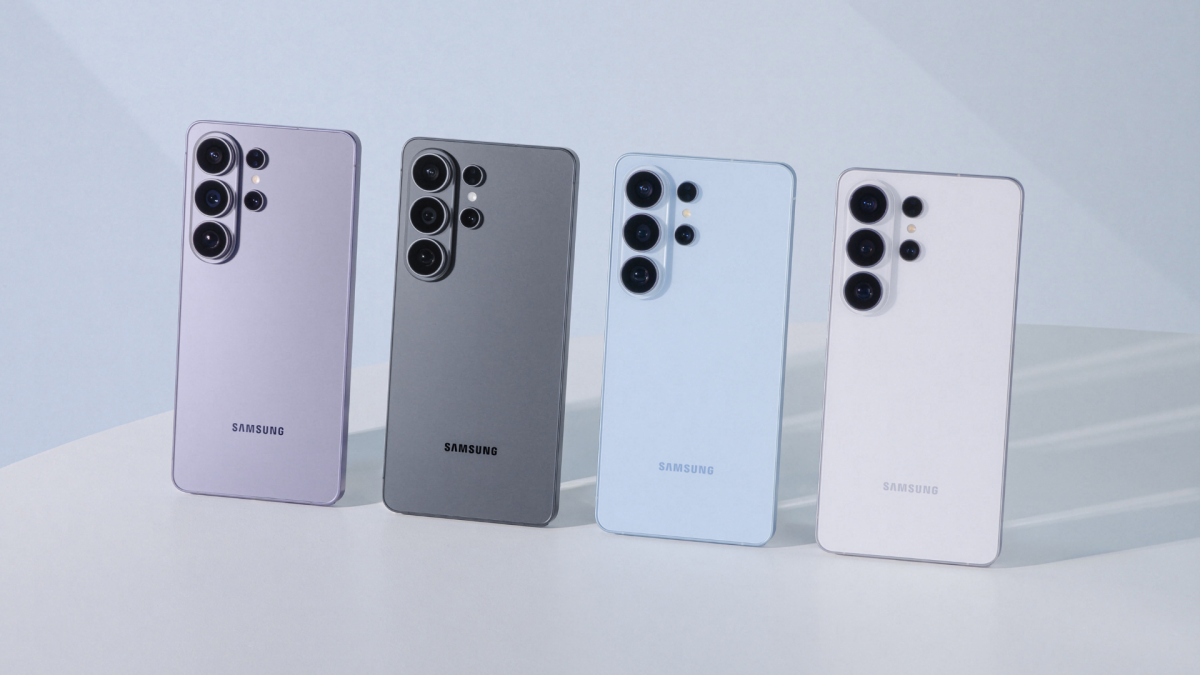
Galaxy S26 series camera specs at a glance
Here’s how the Galaxy S26, Galaxy S26+ and Galaxy S26 Ultra compare across the camera features that matter most for live music.
The whole point of pulling your phone out at a concert is to relive the night later on. The Galaxy S26 Ultra makes sure the footage you come home with doesn’t disappoint.
See the full Galaxy S26 Series line-up at samsung.com.
Frequently asked questions about the Samsung Galaxy S26 Ultra camera:
Which model across the Samsung Galaxy S26 Series is best for taking videos at concerts?
The Galaxy S26 Ultra has the strongest camera hardware for low-light and long-range shots, with its 200-megapixel main sensor, wider F1.4 aperture, and 50-megapixel telephoto lens. That said, the AI tools (Photo Assist, Creative Studio, Nightography, Super Steady with Horizontal Lock) all work across the full line-up.
How do I stop my concert video from looking shaky?
The Galaxy S26 Ultra makes this simple. Just turn on Super Steady with Horizontal Lock before the show starts.
Will Nightography work for indoor venues with stage lights?
Yes. Nightography is built for low-light scenes, which covers most indoor concert venues. It’s ready to go the moment you open the camera app; a yellow moon icon appears for photos when the scene is dim enough to benefit. For videos, the feature activates automatically.
[1] Super Steady results may vary depending on editing method and/or shooting conditions.
[2] Results may vary depending on light condition, subject and/or shooting conditions.
[3] Samsung account login is required for certain AI features. Galaxy AI features are provided for free. Future releases may include additional advanced features that are offered as part of a paid subscription plan. Different terms may apply for AI features provided by third parties.
[4] Super Steady results may vary depending on editing method and/or shooting conditions.
[5] Results may vary depending on light condition, subject and/or shooting conditions.
[6] Requires network connection and Samsung account login. A visible watermark is overlaid on the saved image to indicate it was generated by Galaxy AI. Accuracy of output not guaranteed.
[7] Requires network connection and Samsung account login. Accuracy of output not guaranteed.