I regularly use my iPhone to scan physical documents like medical reports, identity cards, forms from my bank, etc. Since 2015 or so, I’ve used an app called Scanner Pro to get the job done. It works well enough, but the best features require a subscription and it is no longer as fast as I’d like it to be. I’ve long known about Apple’s built-in scanner in the Notes app, but it isn’t as convenient as the app I’ve been using, so I never made the switch.
That changed when I recently discovered another built-in scanner on the iPhone, hidden away in the Preview app, of all places. This one is fast, free, and well integrated with the Files app, which is a big plus. Here’s why you should consider using it
Your iPhone’s Preview app has a hidden document scanner
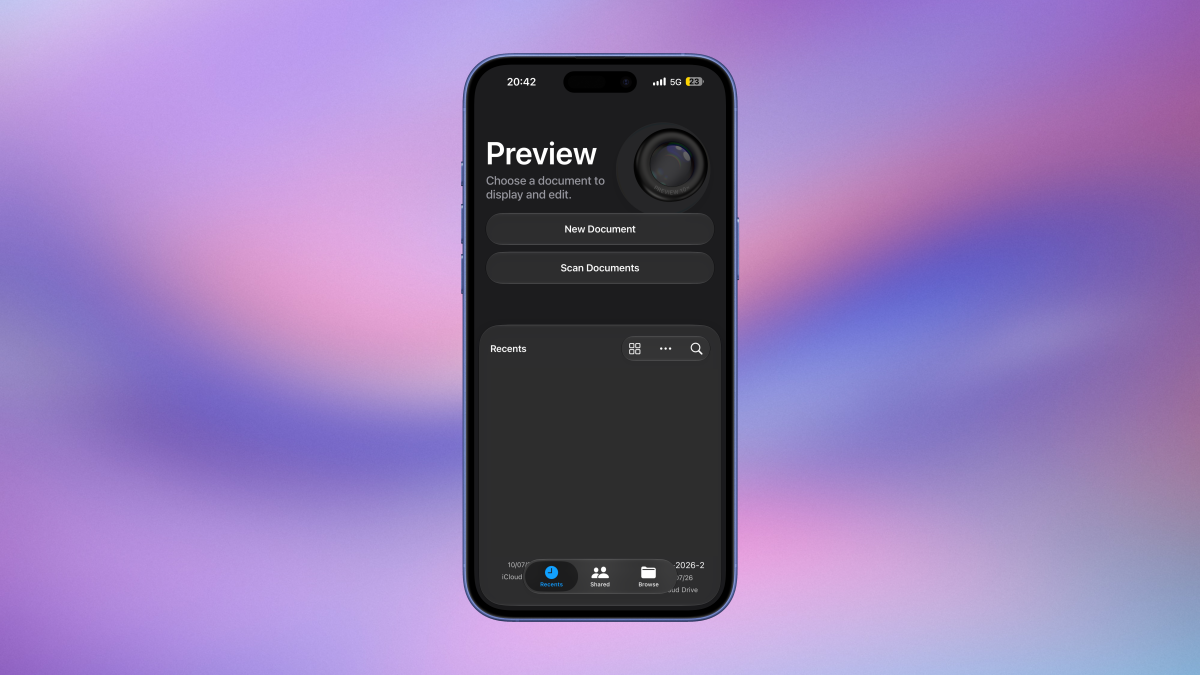
Your iPhone ships with an app called Preview, which was added with the release of iOS 26 in 2025. Now, when you open a document in the Files app, your iPhone will automatically switch to Preview and load the it. However, if you open the Preview app directly, you’ll see a “Scan Documents” button front and center. I’ve been using iOS 26 since the developer betas released, but I only noticed this feature after the recent release of the iOS 27 betas.
When you tap Scan Documents in Preview, your iPhone will fire up the viewfinder, and you can point the device at the documents you want to scan. Like Scanner Pro, the Preview app’s scanner automatically identifies document borders, takes a picture to scan, and reopens the viewfinder so you can point the camera at the next page; it’ll scan that quickly too. Continue this process till you’re done scanning, after which you can hit the checkmark button in the top-right corner. The scanned PDF will automatically be saved to your iCloud Drive folder, without the need to export it. I found this process to be really fast and intuitive enough to recommend to my family members, who resist any technology that requires them to install a new app or press more than two buttons.
When the scanner is open, you’ll see four buttons near the bottom of the screen. The big shutter button lets you manually click pictures for the scan, and the other three let you toggle flash, set color filters, and toggle on the auto-shutter feature, respectively. Auto shutter is the best feature of this app, as it automatically scans a page the moment it detects borders, but it’s not perfect. If you want more precise control over your scans, you can disable it, and control the shutter manually.
Why Preview’s scanner is much better than the one in Apple Notes
I don’t enjoy dealing with PDFs in Apple Notes, and that’s the best argument for using the scanner in Preview, which immediately saves those documents to the Files app. First, Notes makes it much harder to find and use the scanner: You need to open a note, tap the paperclip icon, and select the document scanner from the menu. The output is saved in the same note, and I find it unwieldy to deal with PDFs from within in the Notes app, which is best suited to viewing text-only notes.
What do you think so far?
I now only use the Notes app to scan documents when I specifically want to store the file in the Notes app. But other than the odd recipe I might scan to keep there, I don’t foresee myself using the Notes scanner again. In most cases, Preview’s scanner does a much better job.
Another third-party scanning app to consider
If you want more features than Apple’s document scanner, there are third-party apps that may suit you better. In addition to Scanner Pro, which I mentioned above, Adobe Scan does a great job with scanning, OCR (optical character recognition) and has a generous free tier. In the free tier, Adobe Scan lets you capture unlimited scans, provides 2GB of space in Adobe Document cloud, and offers OCR for documents up to 25 pages long.
The premium tier costs $10/month, and adds a bunch of PDF editing features such as combining PDFs, extracting specific pages from a scan, and editing text in PDFs. You also get to use OCR on scans up to 100 pages per document, up to 20 GB of cloud storage, and a tool called Magic Eraser, which can automatically remove your thumb or fingers from scanned pages. I think the free tier is good enough for most people, but the most annoying thing about Adobe Scan is that even the free tier requires you to sign up for an account. You can sign in with your Apple, Google, or Facebook accounts to make it quick, but it’s still an unnecessary step for those who just want an app that’ll let them start scanning the moment it’s installed.