AI-powered digital assistants continue to expand into new areas and add more capabilities at a rapid pace, and alongside the big names in the business, there are also some independent projects worth keeping an eye on.
Case in point: Clicky, a lightweight, versatile AI bot that floats right next to your cursor on macOS (via XDA Developers). In return for your email address, you can have Clicky keep you company while you do whatever it is you’re doing on your Mac, and via some smart screen capture tech, it can give you context-sensitive help whenever it’s required.
It’s the work of Farza Majeed, and runs on Claude AI. The code has even been open-sourced, so you can play around with it yourself and adapt it to suit your needs—or just download and run the regular version for normal people.
Getting to know Clicky
You can speak or type to Clicky.
Credit: Lifehacker
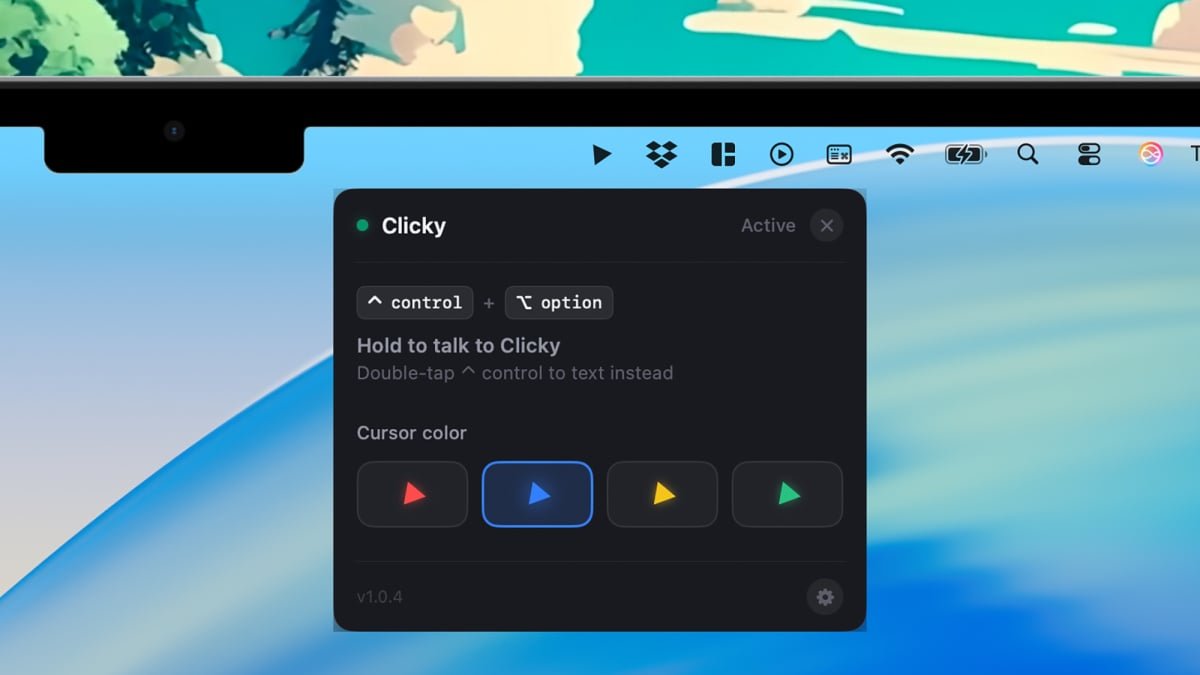
Once you’ve set up Clicky on your Mac, you’ll get a brief introduction from Majeed. It explains how Clicky works, introduces the default keyboard shortcut (Ctrl+Option), and takes you through the necessary steps of giving Clicky permission to access your screen.
These permissions are required for Clicky to see what you’re doing, but Majeed says screen capture is only enabled when you press the shortcut keys, and is only used temporarily to give you relevant responses. You can also quit Clicky at any time: Click its menu icon, then the cog icon, then Quit Clicky.
The same menu bar panel reminds you of the keyboard shortcut you need to activate it (which you can’t change at the moment), and lets you cycle between four different colors for the Clicky flag. This flag floats next to the macOS cursor at all times. This does take some getting used to, but it didn’t take long before I stopped really noticing it.
During the Clicky intro, you’re encouraged to introduce yourself to the AI tool. You can chat with it in the same way you’d chat to Claude on the web or in a mobile app: You can explain who you are, ask questions about anything you like, and get Clicky to look up the latest news headlines on the web, for example.
The context-sensitive help functions are where Clicky really shines. As the tool is always with you whatever you’re doing, you can get instant assistance on a task, whether you’re trying to find something on the web or manipulate photos. And if you don’t want to talk, just double-tap Ctrl to type and get text responses instead.
What do you think so far?
What Clicky can do

Clicky will point out menus, dialogs, and options.
Credit: Lifehacker
I’ve been trying Clicky with all kinds of commands, and it’s been excellent so far: It’s quick, to the point, and friendly. Ask a question like “how do I change my desktop wallpaper?” and Clicky will not only tell you the steps, it’ll move your cursor to the starting point so all you have to do is click.
To continue the wallpaper example, you’re able to query anything on System Settings—such as the Clock Appearance button—and have Clicky explain to you what the button means and how you can use it. I asked about a toggle switch on these dialogs, and Clicky gave me a brief primer on it, as well as reasons why I might or might not want to have it enabled.
I also tried a bit of image manipulation in Photoshop, and Clicky worked very well here, too. It remembers where you’re up to in a task, will point out the menus, buttons, and sliders you need to use on screen, and can give advice about the best way to get a particular result—all powered by Claude’s knowledge base.
Clicky comes in handy when browsing the web as well. You can ask everything from “is this a trustworthy website?” (it decided Lifehacker is), to “can you summarize this website for me?” and the AI assistant obliges. Clicky will also help if you need to know how to do something in your browser (like clear your browsing history).
These are early days for Clicky, and I wonder how it might work with less well-known apps and workflows. Some extra customizations would also be welcome. But I’ve already found it to be genuinely useful, especially when it comes to finding out how to learn to do something inside an app, without having to look up the answer online. It’s easy to see how Apple and Microsoft might eventually add tools like this of their own.