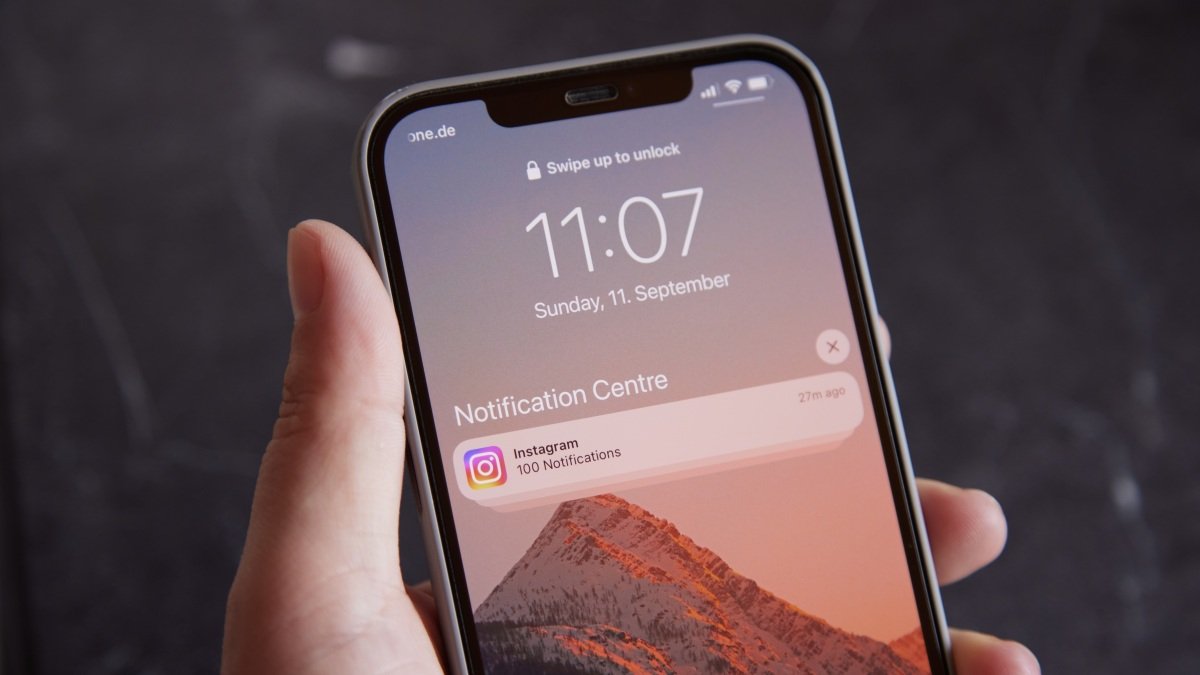
Last week, we learned that the FBI accessed a defendant’s deleted Signal messages on their iPhone, even though that user had deleted the app entirely from their device. It wasn’t that the FBI was able to find the messages themselves on the device; rather, it turns out they were able to pull incoming Signal texts from the defendant’s push notification database. If you’re like most people, you probably had no idea devices like the iPhone had such a push notification database, and that it could be used to retrieve deleted messages. Luckily, there’s an easy way to protect yourself, and ensure no one can pull sensitive information from this space on your iPhone, or any device that receive sensitive notifications.
It is unclear how the push notifications database works, or whether clearing notifications deletes their info from the database. But we might be able to glean some insight from a blog post by the Objective See Foundation (admittedly from 2018), which highlighted an issue with Signal messages on the Mac. The post reads: “In short, anything that gets displayed as a notification (yes, including ‘disappearing’ Signal messages) in the macOS Notification Center, is recorded by the OS.” It looks like the recent FBI investigation used a similar loophole to retrieve data from iOS notifications.
So, how can you protect yourself? The safest method is to turn off notifications altogether, which will prevent any information from being saved in this database, but that’s not practical for most people. Most of us want to be alerted when receiving a new email, message, or an important update in an app. However, you can stop your device from displaying the contents of messages in the notifications, preventing this information from appearing in the database. When you do this, each of your notifications will look something like, “You have a new message,” as opposed to: “Pranay Parab: My Netflix password is Lifehacker.” Again, it’s not clear how this database works, or which platforms have the same database as iPhone, but for the sake of privacy and security, I’ve listed steps for most major device platforms below:
Protect sensitive notifications on an iPhone
Your iPhone allows you to hide the contents of messages from all of your app notifications. You can enable this by going to Settings > Notifications > Show Previews and select Never. You also have the option to disable notification previews for specific apps. To do this, go to Settings > Notifications, scroll down, and tap the name of the app you wish to hide alert previews for. Select Show Previews > Never, and repeat that step with every other app that you want to hide notifications for.
Remove information from the notification database on a Mac
Credit: Pranay Parab
On your Mac too, you can hide notifications previews globally or for individual apps. First, go to System Settings > Notifications. Click the drop-down menu next to Show previews and select Never. This will disable notification previews altogether. Alternatively, you can scroll down, select any app from the list, and click Show previews > Never to disable previews for individual apps.
In case you want to purge notifications from the database on your Mac, you can install the free app called AuRevoir, which was developed by The Objective See Foundation following their findings. It allows you to view and remove all the information stored on your Mac’s notification database. You can click View Msgs to see the stored data, followed by Remove Msgs to purge it from your Mac.
Keep sensitive information out of Android’s notifications
Although Android has a few different ways to hide notification previews on the lock screen, there aren’t too many options to disable these previews when the phone is unlocked. You’ll find it easier to disable notification previews from each app’s settings page individually, as opposed to looking for a toggle that works across Android.
What do you think so far?
To disable notifications on the lock screen, go to Settings > Notifications > Notifications on lock screen, and turn off Show sensitive content. You can also enable Hide silent notifications in status bar and also turn off Show silent notifications. There are some granular options available under Settings > Notifications > App notifications, so be sure to check that out too. These settings pages may be different on your Android phone on account of manufacturer customizations.
Clear notification information in Windows
Unfortunately, Windows doesn’t have a global setting to disable notification previews, but you can hide previews from the lock screen. To disable notification previews in Windows, open the Start Menu, and click the gear icon near the power button. This will open the Settings app. Go to System > Notifications > Notifications. Disable Show notifications on the lock screen. Next, scroll down and select each app you want to hide previews for, and enable Hide content when notifications are on lock screen.
Beyond this, you’re going to have to rely on notification settings within individual apps to disable previews. I’ve listed a few popular options below.
Hide sensitive content from notification in popular messaging apps
Popular messaging apps allow you to disable notification previews through in-app settings. This is just as effective as using your device’s system settings to disable notification previews, but I’m mentioning it here in case your operating system doesn’t let you disable notification previews easily:
-
In WhatsApp, you can go to the app’s settings, tap Notifications and disable Show preview.
-
If you’re using Signal, tap the profile icon in the top-left corner, and go to Settings > Notifications. Select Show, under “Notification Content.” On the next page, the safest option is to select No Name or Content.
-
You can also do this in Telegram’s settings. Go to Notifications and Sounds > Private Chats, and disable Message Preview. You can do the same thing under the Group Chats page in notification settings.